Most Odoo 20 articles list features. If you run a plant, the more useful questions are different: which of these changes touch the way we plan and close production, and is it safe for us to move now? This guide covers the manufacturing changes listed in Odoo's own Odoo 20 release notes, explains what each one changes on the shop floor, and shows which kinds of manufacturers should test first.
The Odoo 20 changes covered here center on planning, order handling and cost visibility. If you are still deciding whether the Manufacturing app suits your business, start with our overview of Odoo ERP for manufacturing and our guide to what Odoo MRP does and saves, then come back for what is new in Odoo 20. For a wider look at running production in Odoo, see proven strategies to manage production in Odoo.
Odoo 20 manufacturing at a glance
Everything in this table comes from Odoo's Odoo 20 release notes. The right-hand column is our view of who it matters to.
Change in Odoo 20 | What it means | Who feels it most |
|---|---|---|
Draft or confirmed MOs from procurement | On the Manufacturing operation type you choose whether procurement creates draft or confirmed manufacturing orders. | Planners who review auto-generated orders |
Redesigned MO Kanban | The manufacturing order Kanban is redesigned, and the total remaining time shows in every Group By view. | Planners, supervisors |
Planned as soon as possible by default | New manufacturing orders are scheduled as early as possible unless you change it. | Anyone relying on current scheduling habits |
MO Cost field | Shows a provisional cost while the order is in progress and the real cost once it is complete. | Plant managers, finance |
Lots and serials at closing | Lot and serial numbers are generated automatically when a manufacturing order is closed. | Traceability-heavy products |
Reset to draft and split ongoing MOs | Validated or cancelled orders can be reset to draft; an ongoing order can be split to produce the remainder later. | Job shops, make-to-order |
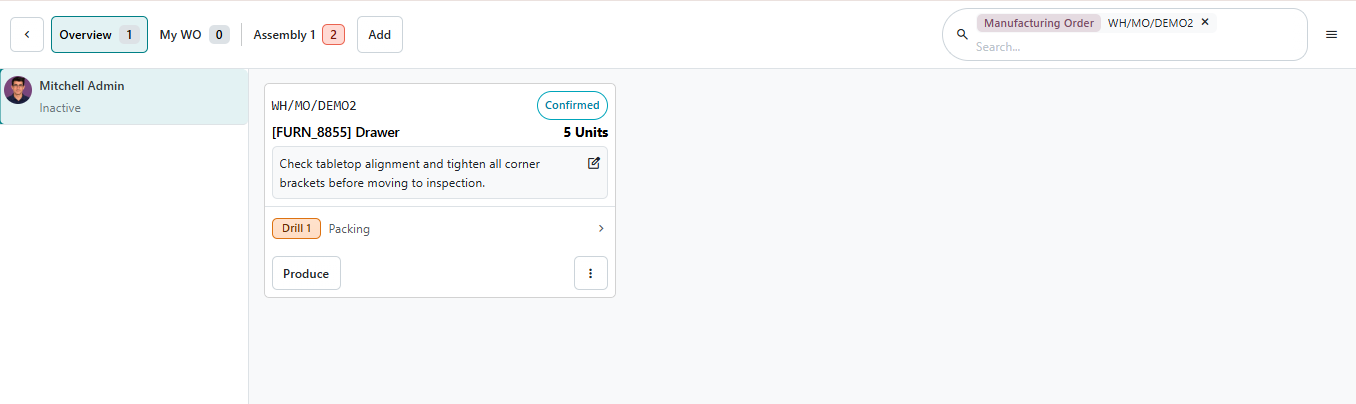
Work order Kanban and Gantt | New Kanban plus a Gantt with drag-and-drop planning, colour coding and a per-employee view. | Production planners |
Continuous production | Produced quantities can be recorded on work orders so later operations can start on partial output. | Flow and high-volume lines |
HTML notes and better reporting | Rich-text notes in the backend and Shop Floor; improved work order and MO reporting. | Operators, supervisors |
The flow below shows where each change sits in the life of a manufacturing order, from demand to cost.
Odoo production planning: work order Kanban and Gantt
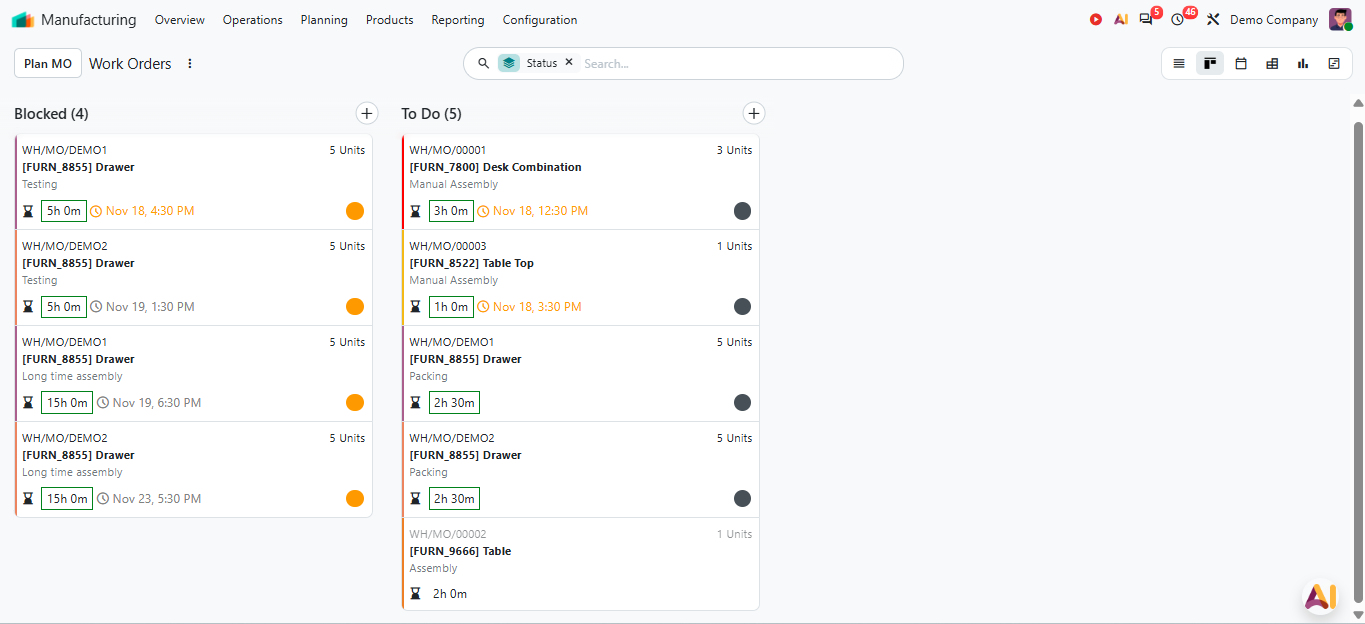
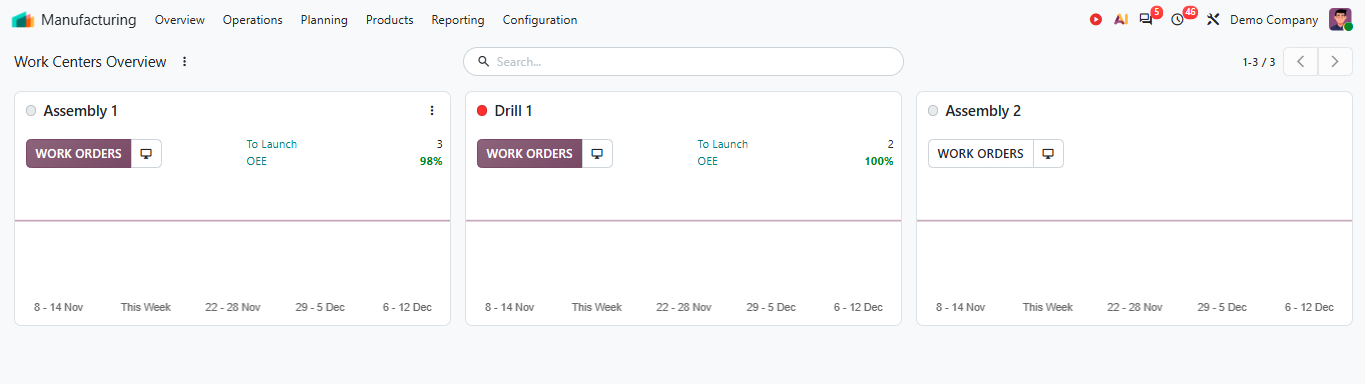
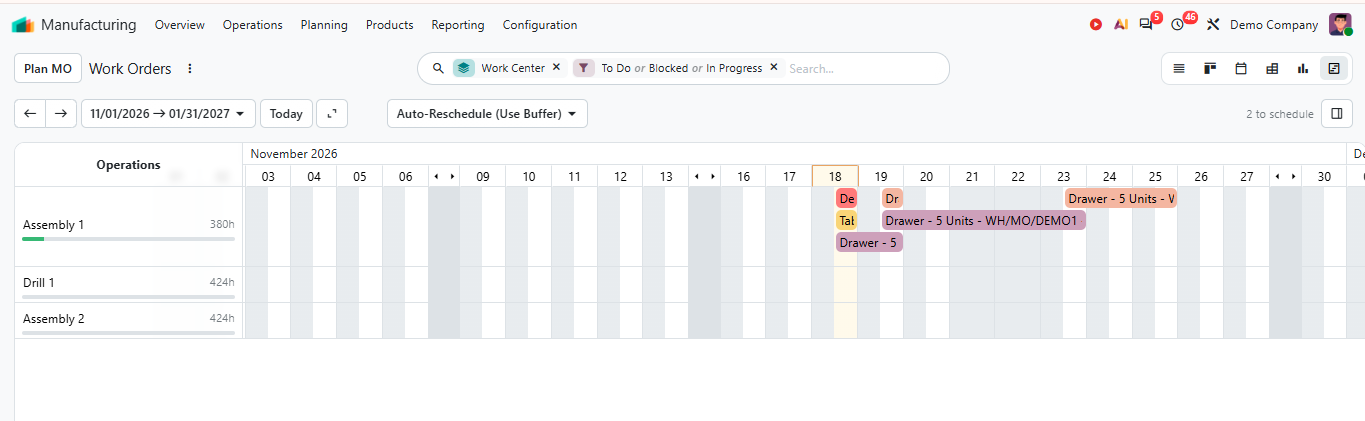
Planning is where Odoo 20 changes the most. Work orders get a Kanban view you can use to see and adjust the plan, and the Gantt view now supports drag-and-drop planning, clearer colour coding and a view by employee. Completed work orders also show in the Gantt by default.
For a planner, the practical gain is fewer exports to spreadsheets. You can see which work centre is overloaded, move a job, and check who is assigned, without leaving the Odoo manufacturing module. Good planning also depends on stock and purchasing being connected to production, which we cover in how Odoo connects sales, inventory and production.
Continuous production: start the next step sooner
Normally, the next operation waits until the previous one has finished the whole order. Continuous production changes that. Per Odoo's documentation, you switch it on per bill of materials by ticking the Continuous Production option in the Miscellaneous tab. After that, when a partial quantity is registered on a work order, the next work order can start on that quantity.
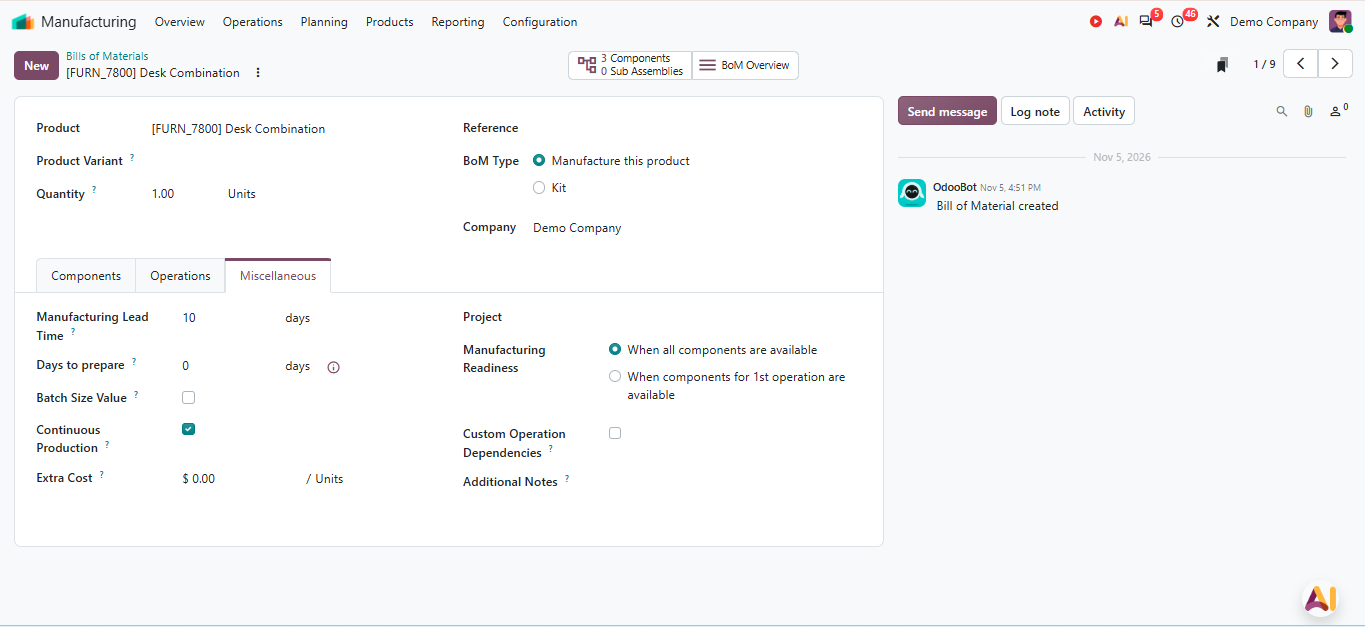
Odoo's own example is a bottling line where bottling and sealing can begin as soon as the first mixed product is ready. The partial quantity is registered from the work order, ideally from Shop Floor. This suits lines where waiting for the full batch leaves machines idle.
Manufacturing order changes that affect daily work
The redesigned MO Kanban groups orders by status, with the total time shown for each column.
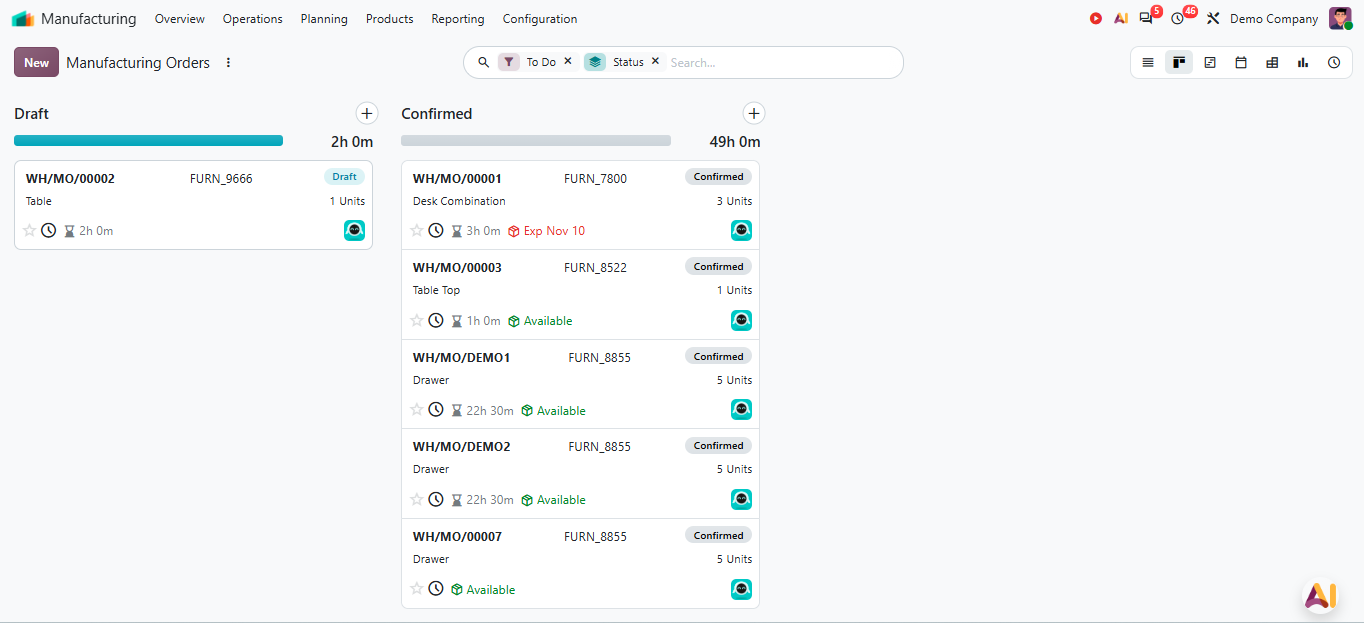
- Draft vs confirmed orders: decide per operation type whether procurement-generated orders arrive as drafts for review or as confirmed orders.
- Scheduling default: orders are planned as soon as possible by default. Check that this matches how your planners expect new orders to land.
- Split an ongoing order: per Odoo's documentation, a partly produced order can be split from the Actions menu or the Change Quantity to Produce window. The completed units and the remaining quantity end up on linked orders.
- Reset to draft: validated or cancelled orders can be reset, which helps when an order was closed by mistake.
- Lots and serials at close: numbers are generated automatically when you close the order, so check any workflow that created them earlier. If traceability is central for you, our guide to Odoo Inventory explains how lots and serials work across the warehouse.
- HTML notes: instructions can now be formatted text, visible in both the backend and Shop Floor.
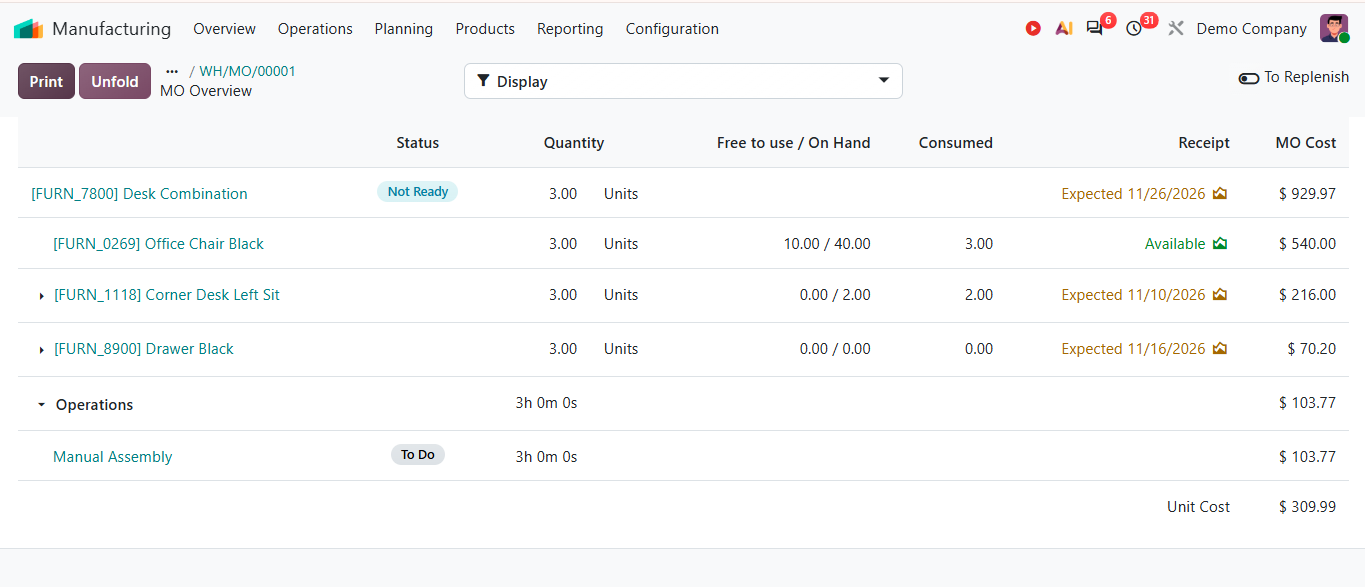
Manufacturing order cost: see the number while production runs
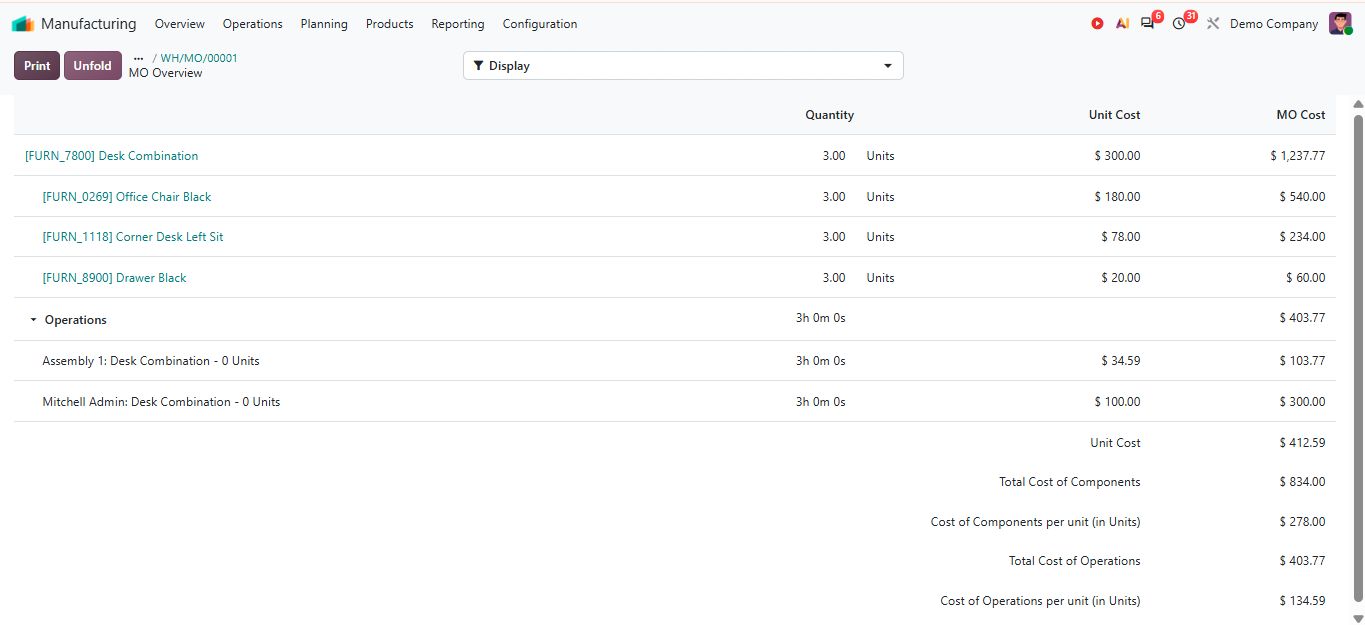
The MO Cost field on the manufacturing order overview now behaves in two stages: a provisional cost while the order is in progress and the real cost once it is complete. That gives plant managers an earlier read on whether an order is drifting, instead of waiting for the close.
Odoo 19 vs Odoo 20: what to re-test before you upgrade
We have not compared every Odoo 19 behavior line by line, so this table lists what to re-test instead of claiming what Odoo 19 lacked. If you are coming from Odoo 19, our post on Odoo 19 for manufacturing covers the previous release.
Area | Odoo 20 behavior | Re-test before upgrading |
|---|---|---|
Scheduling | New MOs are planned as soon as possible by default. | Do planned dates still match what your team expects? |
Order creation | Procurement can create draft or confirmed MOs. | Is each operation type set the way you want? |
Traceability | Lots and serials generate when the MO is closed. | Any custom steps or reports that rely on earlier numbering |
Work orders | New Kanban and Gantt; continuous production available. | Operations, work centers and routings on your BoMs |
Costing | MO Cost shows provisional then real cost. | Reports or dashboards built on cost fields |
Custom code | Release notes cover standard behavior only. | Every custom module touching MOs, BoMs or work orders |
Who should upgrade now, and who should wait
This is our view as Odoo consultants, based on which changes matter most to each type of production. It is guidance, not a rule.
There is also a timing reason to plan. Odoo supports a limited set of recent major versions, and per Odoo's notice, a database left on an older version after the deadline can attract an extended support fee. We explain what that could mean in Odoo end of support: what the 25% extended support fee could mean for your business. Check your own Odoo notice for the versions and dates that apply to you.
Manufacturing type | Most relevant Odoo 20 changes | Our view |
|---|---|---|
Job shop / make-to-order | Work order Kanban and Gantt, split MOs, as-soon-as-possible planning | Strong case to test early; the planning views are the main gain. |
Repetitive / high-volume | Continuous production, MO Cost | Test continuous production on one line before using it widely. |
Process manufacturing | Lots and serials at close, HTML notes, improved reporting | Review traceability steps first; move once your test passes. |
Heavily customised database | None of the above until custom code is proven | Wait until custom modules pass testing on a copy. |
Upgrade readiness checklist
- Know your current version (17, 18 or 19) and the upgrade path to Odoo 20.
- List every custom module that touches manufacturing orders, BoMs or work orders.
- Check which planners depend on current scheduling behaviour.
- Review lot and serial workflows, because numbers now generate at close.
- Check reports and dashboards that use MO, work now generate at close. order or cost fields.
- Run the upgrade on a copy first, then have planners and operators process a week of sample orders.
For the mechanics, see how an Odoo migration works, step by step and our Odoo 18 to Odoo 19 migration guide, which shows the technical side of a version upgrade. Planning this properly is what our Odoo migration work is about: testing on a copy before anything touches production.
Illustrative example (not a real client)
Picture a job shop running a handful of concurrent orders across painting and assembly, with planners adjusting schedules in a spreadsheet. With Odoo 20, they could move work orders in the Gantt, see assignments by employee, and split an order when only part of it ships. Before relying on that, they would still need to test their routings and custom reports on a copy of their database.
- Upgrading the live database first instead of a copy.
- Treating it as an IT task and leaving planners and operators out of testing.
- Turning on continuous production for every BoM at once.
- Forgetting that scheduling defaults changed, so planners are surprised by new dates.
- Skipping checks on reports that depend on cost or order fields.
Executive Summary
- Odoo 20 manufacturing changes focus on planning, order handling and cost visibility.
- Work order Kanban and Gantt views make re-planning faster, including a view by employee.
- Continuous production lets the next operation start on partial output, switched on per BoM.
- MO Cost, split orders, reset to draft and lots/serials at close change daily handling, so re-test them.
- Job shops gain most from planning views; high-volume lines from continuous production; customized databases should wait for a tested copy.
Deep-Dive FAQ
What's new in Odoo 20 manufacturing?
Odoo's release notes list continuous production, split ongoing MOs, as-soon-as-possible planning by default, lots and serials generated at closing, a clearer MO Cost, a redesigned MO Kanban, new work order Kanban and Gantt views, and HTML notes.
Is Odoo manufacturing suitable for a job shop or for high-volume production?
Odoo MRP uses bills of materials, work orders and work centres, so it can model both. In our view, job shops lean on the planning views and split orders, while high-volume lines lean on continuous production and costing. A short fit check of your routings and scheduling needs settles it. Our Odoo manufacturing guide shows what the module covers.
When should a manufacturing company upgrade its Odoo ERP?
Upgrade when new features remove a workaround you currently maintain, when your current version is approaching the end of Odoo's support window, and when you can test on a copy first. The extended support fee explained here is one reason not to wait too long.
How does continuous production work in Odoo 20?
You tick Continuous Production on the bill of materials. When partial output is registered on a work order, the next operation can start on that quantity instead of waiting for the full order.
Does Odoo 20 improve production planning?
It adds a work order Kanban and a Gantt with drag-and-drop planning, colour coding and a per-employee view, and plans orders as soon as possible by default.
How does an Odoo MRP implementation usually run?
Typically you map the current process, configure BoMs and work centres, load data, test with real orders, train users and then go live. Timing depends on how many routings and custom needs you have. See our Odoo implementation service for how we run it.
Talk to us about Odoo 20 for your plant
Not sure whether Odoo 20 suits your production setup, or what to test before upgrading? ERP Consulting Group can walk through your Odoo manufacturing setup and tell you what to check first, from Odoo migration to Odoo support and maintenance. If you are choosing a partner, start with how to choose the right Odoo partner. Write to us at info@erpconsulting24.com to book a free demo or consultation. |
 Recent Posts



 Free Consultation